 BGPeel
KakaoTalk Emoticon Sizes and Clean Transparent PNGs
KakaoTalk emoticons sit directly on top of the chat room background. That makes a transparent PNG the default, and even a one-pixel line of leftover background color stands out in a dark chat theme. This guide walks through turning an AI-generated or hand-drawn character into a clean transparent PNG at proposal size, with real measurements along the way.
The sizes to know
Below are the proposal specs that Kakao Emoticon Studio has listed for a long time. On November 26, 2025, Kakao announced a redesigned Emoticon Studio with simplified production steps and specs, and opened mini emoticon proposals to everyone. Details such as counts and file size limits may have changed, so check the studio's current production guide before you submit. This guide focuses on what every spec needs: a clean transparent PNG at an exact size.
| Type | Count (proposal) | Size | Background |
|---|---|---|---|
| Still emoticons | 32 | 360×360px | Transparent PNG |
| Animated emoticons | 24 | 360×360px | Transparent |
| Big emoticons | 16 | 540×540px base | Transparent |
Every type shares three requirements: a square canvas, a transparent background, and consistent size and margins across the whole set.
Edges show up in dark chat rooms
Emoticons appear on whatever chat background the user chose. A pink outline you can't see on a light background becomes obvious in a dark theme. Below, a spirit character generated on magenta has been scaled to 360px and placed on a dark background. The left version was made the way a simple “remove color” tool works, deleting only pixels close to the background color. The right one is BGPeel's default result.
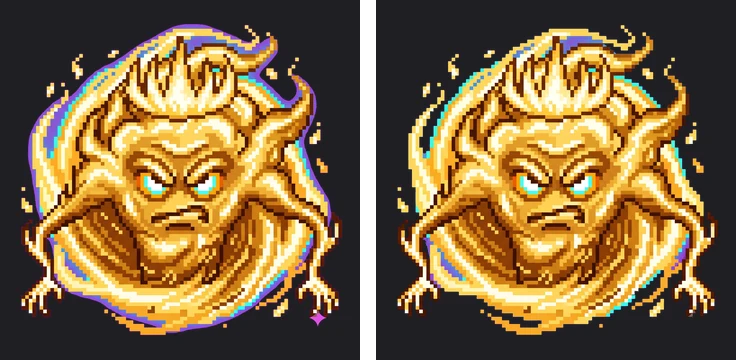
On the left, a purple band survives around the body and the Nano Banana mark is still in the bottom-right corner. Edge pixels are partly mixed with the background color, so deleting only pixels that closely match it leaves that mixed band behind. The mechanism is illustrated in Why color fringes appear. BGPeel makes each pixel only as transparent as its background share and subtracts the mixed-in color, so no outline appears on dark backgrounds.
Deal with the margins first
AI generators often draw the character small in the middle of the canvas. Our test slime covered only 58% of the width and 48% of the height of its 2048px canvas. Scaled straight down to 360px, the slime would be about 208px wide, with the rest empty space. Emoticons are viewed small, so a character that fills its square reads much better.
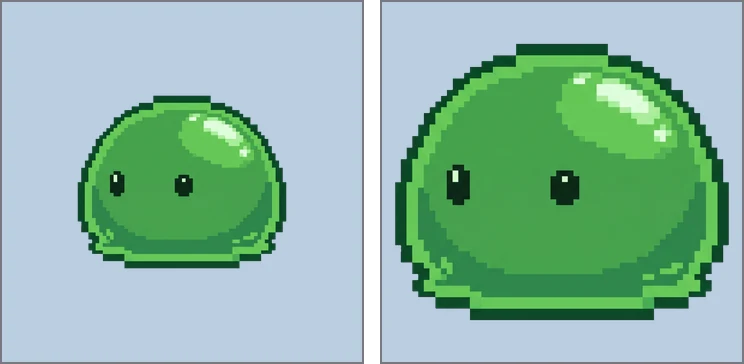
BGPeel scales images but doesn't crop margins. There are three ways to tighten them:
- Ask for a bigger subject: add “fill the frame, close-up, small margin” to the prompt, but keep a little margin, because a character touching the border prevents the background color from being detected.
- Crop in an image editor: crop the transparent PNG to a square. To keep margins consistent across 32 images, crop with the same frame each time.
- Script it: if you can run Python, this crops away the transparent area and re-centers the character on a square canvas.
from PIL import Image
im = Image.open("slime.png")          # transparent PNG from BGPeel
body = im.crop(im.getbbox())          # crop transparent margins
side = int(max(body.size) * 1.08)     # 4% margin on each side
canvas = Image.new("RGBA", (side, side), (0, 0, 0, 0))
canvas.paste(body, ((side - body.width) // 2, (side - body.height) // 2))
canvas.resize((360, 360), Image.LANCZOS).save("slime_360.png")
Making 360px transparent PNGs with BGPeel
- Generate the characters on a solid background (magenta in most cases). For a set, using the same background color for all 32 is easiest.
- Drop the folder onto BGPeel and click “Convert”.
- Switch the preview background between black and white to check that no background color remains on the edges. It's a preview of light and dark chat rooms.
- Under “Download size”, choose a custom size and enter 360 (540 for big emoticons).
- Keep “Format” on PNG. If the file size limit is tight, turn on “Reduce to 256 colors”.
- Click “Download zip”. Your folder structure and file names are preserved.
BGPeel scales by the long side and keeps the aspect ratio, so a non-square original comes out as something like 360×270 rather than 360×360. Generate at 1:1 or put the character on a square canvas first, as above. BGPeel never enlarges, so originals must be larger than 360px.
How big are the files at 360px?
Actual file sizes of our three test characters saved from BGPeel at 360px and 540px (measured in Chrome):
| Character | 360 PNG | 360 PNG 256 colors | 540 PNG | 540 PNG 256 colors |
|---|---|---|---|---|
| Slime (simple) | 55KB | 19KB | 118KB | 42KB |
| Plant (detailed) | 171KB | 44KB | 334KB | 80KB |
| Spirit (light effects) | 175KB | 41KB | 340KB | 70KB |
A simple character is light even as a regular PNG, but detailed or glowing characters passed 170KB even at 360px. Reducing to 256 colors brings files down to roughly a quarter. With pixel art and simple illustrations the difference is hard to see, but smooth gradients can show banding, so zoom in and check. A fuller format comparison is in PNG vs WebP vs JPG.
Animated emoticons
BGPeel reads only the first frame of a GIF and doesn't create animations. For animated emoticons, export each frame as a separate PNG, remove the backgrounds of the whole folder in BGPeel, then assemble the PNGs in an animation tool. Every frame gets the same settings, so edge quality doesn't jump between frames. If order matters, name files with fixed-width numbers such as 001, 002.
Pre-submission checklist
- No background color left on the edges, in both the black and white previews?
- Every file exactly 360×360 (or 540×540)?
- Character size and margins similar across the set?
- No stray elements such as an AI watermark in the corner?
- Counts, size limits and formats match the studio's current guide?