 BGPeel
App Icon and Favicon Sizes for iOS, Android and the Web
One icon, many destinations, each with its own size and rules. iOS refuses transparency, and Android expects the outer part of your icon to be cropped away. Here are the specs per platform, plus the snags you hit when your icon starts life as a transparent PNG.
At a glance
| Use | Size | Requirements |
|---|---|---|
| App Store icon (iOS) | 1024×1024px | PNG, no transparency or alpha channel, no rounded corners |
| Android adaptive icon | 108×108dp per layer (432px at xxxhdpi) | Foreground and background layers; key content within a 66dp circle |
| Android legacy launcher icon | 48dp (48, 72, 96, 144, 192px) | One per density, mdpi to xxxhdpi |
| Google Play store icon | 512×512px | 32-bit PNG, sRGB, up to 1024KB, full square |
| Favicon | 16, 32, 48px (ICO) or PNG in multiples of 48 | 48×48 or larger recommended for search results |
| iOS home screen shortcut (apple-touch-icon) | 180×180px | Opaque recommended |
| Web app manifest (PWA) | 192×192 and 512×512px | Maskable icons: key content within a circle of 40% radius |
iOS: one 1024px image, and no transparency
The App Store icon is a 1024×1024 PNG. Since Xcode 14 you can supply just this one image and let Xcode derive the device sizes, instead of preparing 180, 167, 152 and 120px versions by hand. Don't round the corners either; the system applies its own mask, so draw a full square.
The rule people trip over most is no transparency and no alpha channel. Even if no pixel is transparent, a PNG that contains an alpha channel can be rejected on upload. We checked PNGs saved by BGPeel in Chrome: they are stored in a format with an alpha channel (RGBA) even when the image is fully opaque. So if your icon character is a transparent PNG, the final step for iOS is to fill in a background color and drop the alpha channel.

There are two easy ways to fill the background and remove the alpha channel. On a Mac, open the PNG in Preview, choose Export and uncheck “Alpha”, then make sure the formerly transparent areas came out in the color you intended. In Python, composite onto a background color and save as RGB:
from PIL import Image
icon = Image.open("icon_1024.png").convert("RGBA")
bg = Image.new("RGBA", icon.size, (126, 200, 248, 255))  # fill color
bg.alpha_composite(icon)
bg.convert("RGB").save("AppIcon-1024.png")               # no alpha channel
Android: the outer third may be cropped
Adaptive icons, used since Android 8.0, take a foreground layer (character or logo) and a background layer separately. Both are 108×108dp, and the device shows only the central 72×72dp, cropped to a circle, rounded square or other shape. The outer 18dp on each side is reserved for parallax and pulse effects. The official guidance is to keep anything that must be visible, like a logo, within the central 66dp circle.
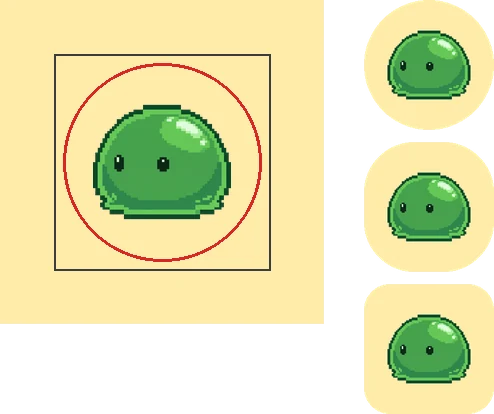
A transparent PNG character makes a natural foreground layer: the background is already gone, so you add a solid color or pattern as the background layer. Make the foreground PNG 432×432px (108dp × 4 for xxxhdpi) and keep the character within the central 61% or so (66/108). Feed the transparent PNG to Android Studio's Image Asset tool and it will generate the per-density files and previews.
The icon on your Google Play store listing is separate: a 512×512px 32-bit PNG of up to 1024KB. Google Play applies a rounded mask (a radius of 30% of the icon size) and a shadow itself, so upload a full square with no rounded corners or shadow.
Web: favicons, apple-touch-icon, PWA
A browser tab shows the favicon at 16 to 32px. Use a multi-size favicon.ico, or link a PNG or SVG with <link rel="icon">. For the site icon in Google Search results, a square in multiples of 48px (48, 96, 144…) is recommended. This site links a single 192px PNG as its favicon.
The icon shown when someone uses “Add to Home Screen” on an iPhone is set with apple-touch-icon, and 180×180px is standard. Transparent areas may appear black on some devices, so fill the background. Installable web apps (PWAs) list 192px and 512px icons in the manifest, and should add a separate purpose: "maskable" icon for devices that crop icon shapes. A maskable icon's safe zone is a circle with a radius of 40% of the icon width.
One master: large and transparent
Different sizes per platform don't mean drawing the icon several times. Keep one master of 1024px or more with a transparent background, and every size above can be scaled down from it. Scaling a small image up makes it blurry and jagged, so the master must be larger than the largest size you need. Keeping the background separate also means you can choose a different background per platform later: an Android foreground layer, a filled background for iOS, a round icon for the web. Paint the background into the master and you'll be redrawing for every variant.
What disappears when you shrink
More important than any spec is whether the icon is still recognizable when small. We scaled a detailed plant monster to 180, 64, 48, 32 and 16px.
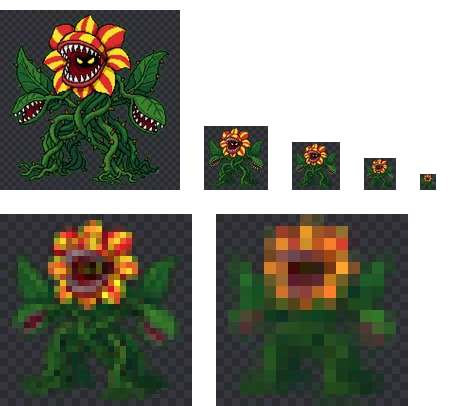
Down to 48px the flower face and leaves are distinct, but from 32px the teeth and vines blur together, and at 16px only red and yellow blobs remain. For icons used at 16 to 32px, such as favicons, crop to just the face or draw a simpler version rather than shrinking the full illustration.
Getting several sizes at once with BGPeel
- Add an icon master of 1024px or more to BGPeel and remove the background. If it's already transparent, or you want to keep its background, open the tool in “Keep background” mode.
- Set “Download size” to 1024 and download.
- Change the size to 512, 192, 180 and 48 and download again each time. Results are kept at full resolution and resized at download time, so there's no need to convert again.
- For the iOS 1024px icon, fill the background and remove the alpha channel as shown above.
BGPeel halves the image step by step instead of shrinking it in one jump, which keeps thin outlines from breaking up. Details are in Resize images.