 BGPeel
Turn a Magenta or Chroma Key Background into a Transparent PNG
AI image generators don't give you a transparent background for game sprites or icons. Instead, generate on a solid color like magenta or green, then remove just that color to get a clean transparent PNG.
Which background color should I use?
The key is a color that barely appears in the object.
- Magenta (#FF00FF): full red and blue with zero green, so it rarely shows up in characters or props. The safest choice in most cases.
- Green (#00FF00): pick this when the object has a lot of pink or purple.
- Blue (#0000FF): an option when the object has plenty of both green and pink.
In the prompt, ask for no shadows or gradients, e.g. “solid magenta (#FF00FF) background, no shadow, no gradient”, for cleaner results.
How to use it
- Drop images or a folder onto BGPeel.
- The background color and type are detected automatically. Click “Convert”.
- Check the results on a checkerboard, black or white preview, then download them all as a zip.
Real results
Three monsters generated with Nano Banana on a requested magenta background, processed with BGPeel's default settings. All three were requested as #FF00FF, yet the actual backgrounds were #FC01FB, #FA25FE and #D506D9; auto-detection measured each image's own color and removed it. The sparkle mark in the corner went with the background, and background enclosed by the object, such as the gaps between the plant's vines, became transparent too.
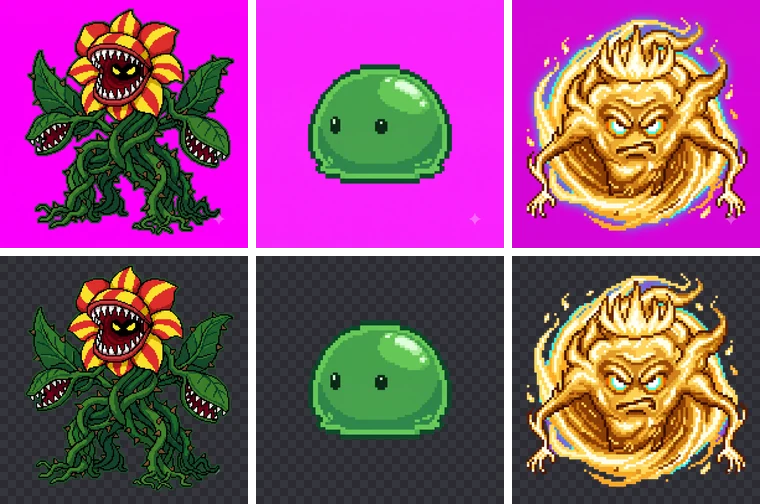
Which background color removes best is compared on the same characters in the background color test.
How is this different from just deleting the color?
If you delete the background color with an editor's magic wand, a pink or green fringe stays around the object, because edge pixels are partly mixed with the background. BGPeel measures how much background is mixed into each pixel, makes it only that transparent, and subtracts the mixed-in background color to restore the object's own color. It can also remove glows attached to the background.
If the result isn't quite right
If a background-colored line remains around the object or its edges get trimmed, see the settings guide at the bottom of the tool page and adjust “Fine-tuning”. You can then reconvert only the cards that need it.