 BGPeel
Troubleshooting: Gradient Backgrounds
Even when you ask for a “solid background”, AI tools like to add lighting: the top and bottom differ, the corners darken (vignetting), or a white background fades to gray toward the bottom. We built five such gradient backgrounds and tested them, and the results split clearly. Some gradients come off cleanly with default settings; others leave one side behind.
How BGPeel decides the background color
To understand the results, start with how the background color is chosen. BGPeel groups the image's border pixels by similarity and uses the median of the largest group (within 80 per channel) as the background color. It then removes pixels similar to that color, plus pixels connected to the background whose hue is close (default −85° to +30°), that have some saturation (0.3 or more) and that aren't too dark (brightness 80 or more). Any part of a gradient that falls outside these conditions remains.
How we tested
We placed the background-removed plant monster and slime onto five gradient backgrounds that imitate shapes common in AI images, removed them with default settings, and measured how much of the original background area kept any opacity.
- Magenta at the top → purple (140, 0, 200) at the bottom
- A vignette darkening toward the corners (corner brightness 64)
- Magenta on the left → red (255, 40, 90) on the right
- White at the top → light gray (200, 200, 205) at the bottom
- A very strong vignette (corner brightness 20)
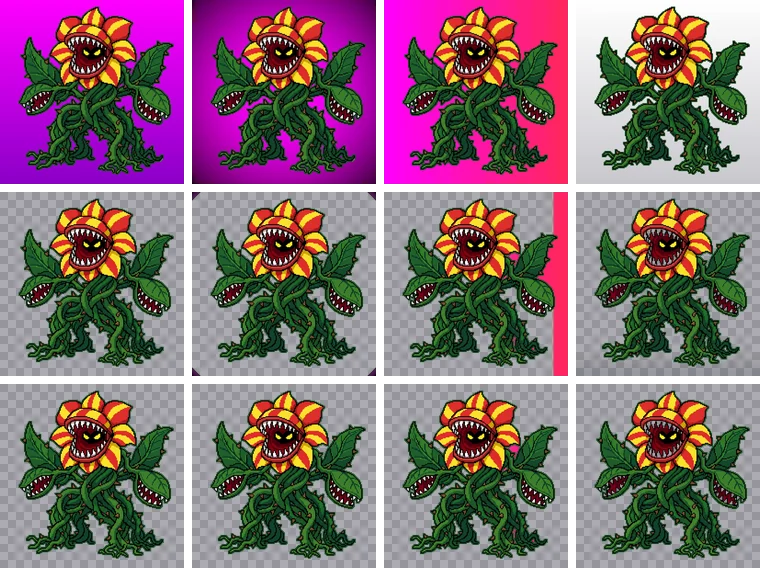
Results
| Gradient | Plant: background left | Slime: background left | Setting changed | After fix |
|---|---|---|---|---|
| Magenta → purple | 0% | 0% | None needed | – |
| Dark vignette | 0.86% | 0.57% | Glow minimum brightness 20 | 0% |
| Magenta → red | 17.4% | 10.3% | Glow color range end +60° | 0.51% (plant) |
| White → light gray | 21.8% (faint) | 18.9% (faint) | Remove threshold 0.3 | 0% |
| Very strong vignette | 4.9% | 65.6% of object lost | Not fixable with settings | – |
Magenta → purple: removed as is
A gradient whose hue drifts slightly from magenta to purple stays entirely within the glow color range and is bright enough, so it was removed in one go like a glow connected to the background. The most common case in AI images, a background that's subtly different top to bottom, usually looks like this.
Dark vignette: only the corners remain
The corners reached brightness 64, darker than the outline-protection level of 80, so they were judged to be outline. What remained were dark triangles in the four corners (0.57–0.86% of the background). Lowering “Glow minimum brightness” to 20 brought it to 0%, while the slime lost 0.17% of its dark outline. Corners are far from the object, so cropping them off in an editor works too.
Magenta → red: a strip remains on one side
This left the most behind. The largest group of border colors was on the magenta side (73% of the border), so the background color was measured as (255, 9, 216), hue 309.5°. The red at the right edge has a hue of 346°, 36.5° away and outside the default +30°, so that strip survived. Widening the end of “Glow color range” to +60° cut the plant's leftover background from 17.4% to 0.51% with no object loss; the plant has red petals, but its outline protected them. Red or orange objects without outlines could be removed along with the background when you widen the range.
White → light gray: a faint film remains
Dull backgrounds like white and gray are processed in “Dull / pale solid” mode, where anything lighter than the background color is removed as “background mixed with white”. The trouble is the side darker than the measured background color. Those pixels compute as slightly different from the background and stay as a faint film with a median opacity of 7–8% and at most 13%. It's hard to notice, but on a dark background they look like gray haze. Raising “Remove threshold” to 0.3 brought it to 0%. The object loss of 1.5–1.9% was about the same as with defaults; it comes from white highlights on the object being indistinguishable from a white background, not from the gradient.
Interestingly, a white-to-gray gradient that's light in the center and darker at the edges left 0% with defaults. The background color is measured at the border (the dark side), so everything else is lighter and gets removed as “background mixed with white”. With gradients, direction changes the outcome.
Very strong vignette: regenerate
With nearly black corners (brightness 20), the median of the largest border group came out as a dark purple, (108, 0, 108). With the background color itself wrong, the slime lost 65.6% of its body.

Specifying magenta manually doesn't help either: too few border pixels are close to it, so the image is skipped. Settings can't fix this; regenerate.
Test versus reality
The test gradients change smoothly, but real AI backgrounds add faint blotches on top. The blotches are usually very close to the background color and harmless, but where a gradient is already near a threshold, such as its far end, a little more may remain. Treat the values in the table as a starting point and nudge them while watching the result.
Fixing it, step by step
- See what's left: switch the preview background between black and white and identify corners, a one-sided strip or a faint film.
- Dark corners left: lower “Glow minimum brightness”, stopping just before outlines break.
- One side left in another color: widen “Glow color range” toward that color. From magenta toward red, widen the end (+); toward blue, the start (−).
- A faint film left: raise “Remove threshold” to 0.2–0.3.
- The object itself badly damaged: background detection failed; regenerate.
Prompts that avoid gradients
Add “flat lighting, even lighting, no vignette, no gradient, uniform background” and leave out lighting terms like “studio lighting”, “dramatic lighting” or “spotlight”. White backgrounds are prone to floor shadows and gray gradients toward the bottom, so unless the object has white in it, magenta is the better choice. Wording per tool is in Solid background prompts.